How to Update Your Mobile Number in Absher
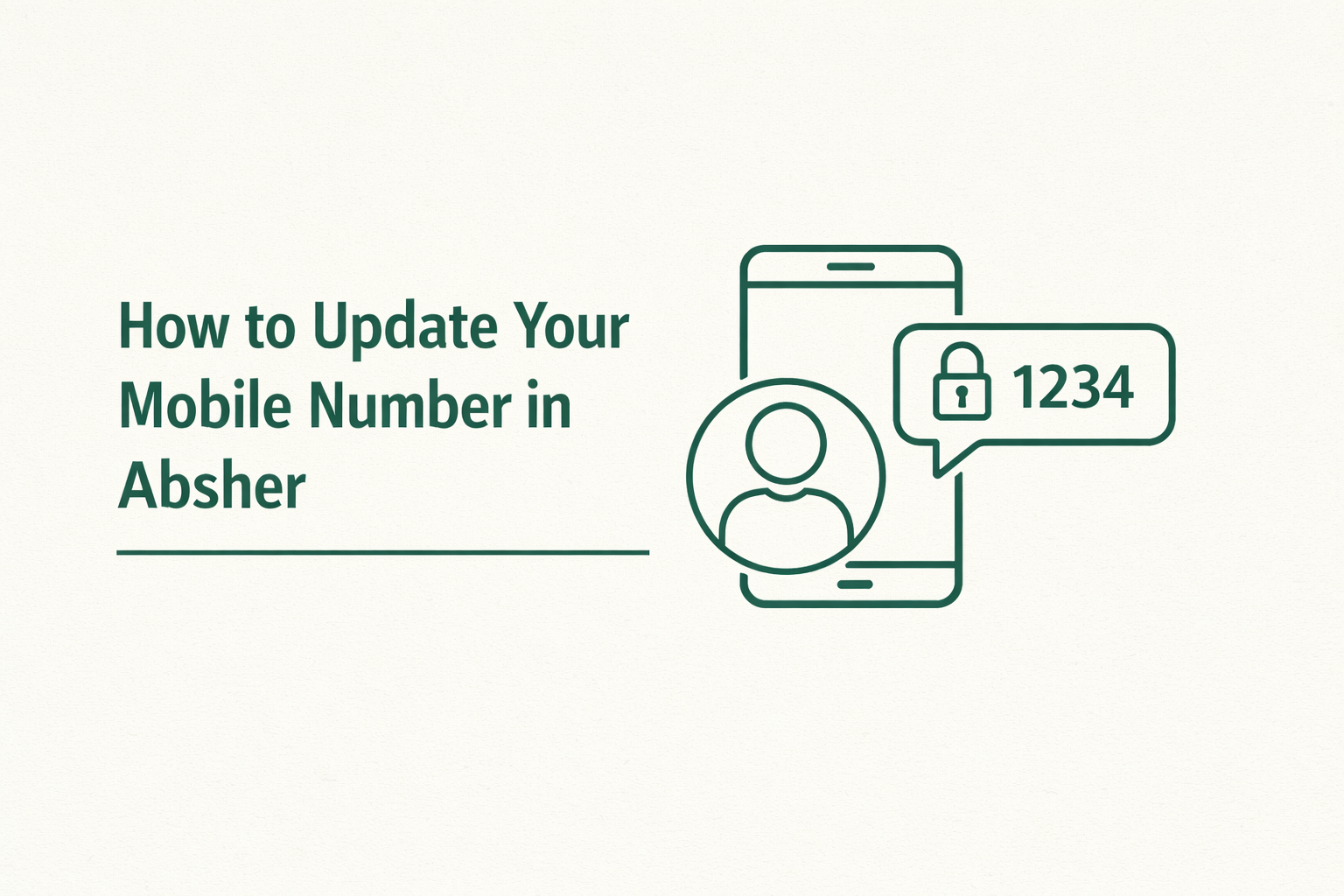
Your Absher account is tied to your mobile number for login codes and approvals. If you switched SIMs, changed providers, or just want everything to work smoothly again, the fastest fix is to update the number inside Absher.
This guide walks you through the normal update process, plus the most common fixes when the code does not arrive or you cannot access the old number. Updating mobile number in Absher is usually quick once your SIM is active and you have SMS working.
Before you start
- Your new Saudi mobile number should be active and able to receive SMS.
- Keep your Iqama or National ID details handy.
- If you are using dual SIM, set the new SIM as the main line for SMS during the update.
- Make sure your phone has a stable signal and you are not in airplane mode.
Update mobile number in Absher
- Go to Absher Individuals and sign in.
- Open the account services area and look for Update User Information or Profile settings. In Absher service guidance, the option is commonly listed under general services as Update Mobile Number.
- Choose Change Mobile Number or Update Mobile Number.
- Enter your new mobile number.
- Follow the on screen verification. If Absher sends an SMS code, enter it when prompted and submit.
- Log out and log back in once to confirm the OTP is now going to your new number.
If you prefer a quicker overview of the official service name and where it sits inside Absher, see the Absher Update Mobile Number page
Common problems and quick fixes
SMS code not arriving
- Restart your phone and try again.
- Check that your line can receive normal SMS from banks and service short codes. Some plans or settings can block them.
- If you recently ported your number, wait a bit and try again once the carrier fully activates all services.
- Try switching off Wi Fi calling and using mobile network only, then request the code again.
You cannot access the old number at all
If you cannot receive OTP on the old number and Absher will not let you proceed online, the Ministry of Interior FAQ guidance points to updating the mobile number via self service machine or activation staff inside the Kingdom.
In this situation, the most straightforward path is usually an Absher self service kiosk update, covered in the next section.
Your mobile number is already linked to another Absher account
The MOI FAQ mentions this kind of mismatch issue and directs users to registration and activation support to update the number and reset access when needed.
In real life, this often happens when a number was recycled or previously used by someone else. Your telecom provider can confirm ownership, and then you can proceed via kiosk or activation support to correct the link.
Absher self service kiosk option
Use a kiosk if you cannot log in, cannot receive OTP on the old number, or your account needs in person verification.
Typical steps at the kiosk are
- Go to an Absher self service machine.
- Select language.
- Choose the service to update or change mobile number.
- Enter your ID or Iqama number.
- Enter the new mobile number.
- Verify identity using fingerprint.
- Enter the verification code sent to the new number and confirm.
After you update, do these two checks
- Log in once more and confirm the OTP arrives to the new number.
- Update the number anywhere else that uses Absher based verification. A good starting point is your bank profile and any services you use for government appointments or deliveries.
For more practical Saudi guides like this, you can also browse our KSA checklist style resources on KSA Buddy which are built for quick fixes and real world steps.